How do I configure a foot pedal with Dictalogic?
This article explains how to connect and configure a foot pedal for use with Dictalogic dictation and transcription workflows.
Applies to
All Users
Compatible foot pedals
Dictalogic supports a wide range of USB foot pedals commonly used in professional dictation environments, including models from Philips and Olympus. Most USB foot pedals are plug-and-play on Windows and do not require additional drivers.
Install Dictalogic USB device extension from your browser
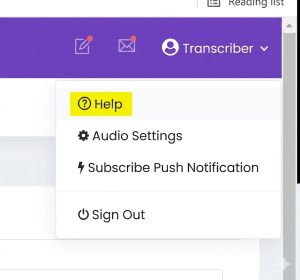
Click on “Help” in a drop down under username in the top right corner.
Download 7- Dictalogic-USB-Device MSI and install it.
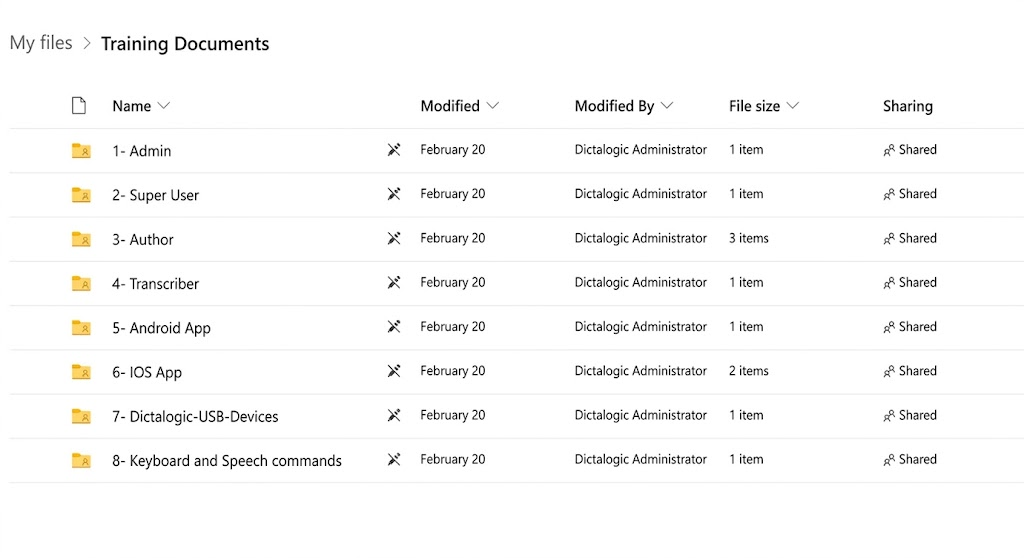
Add a new device:
After installing extension, Go to “Device Configuration” under “Configuration” tab.
Click on “Add” and assuming that the pedal is connected. (Image below)
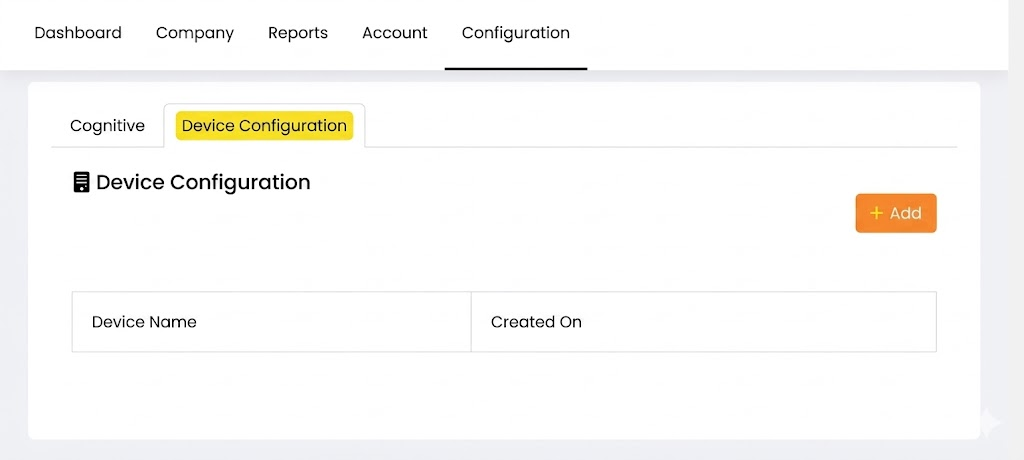
On clicking “Add”, you would see the window below (same as the image that you posted)
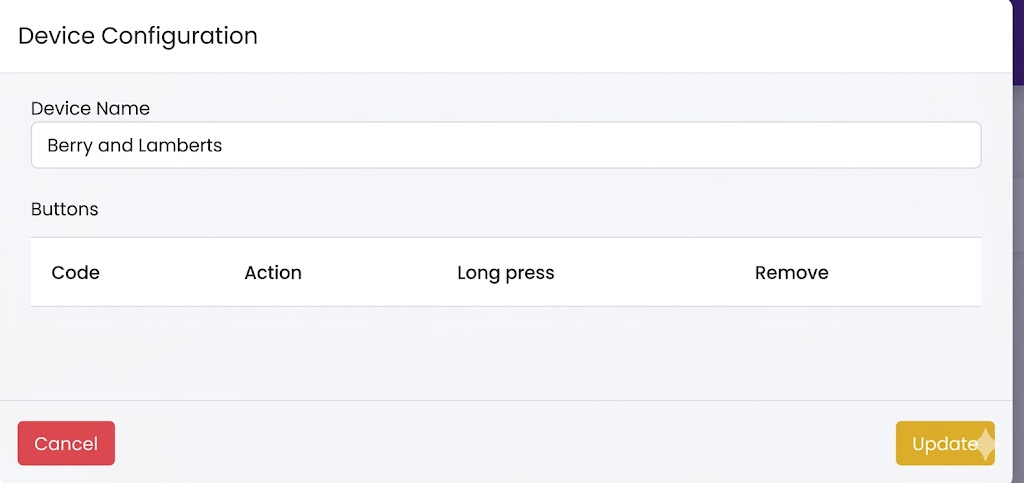
Insert device name and continuously press the button on the foot pedal, each button press will be intercepted by the browser by Dictalogic and the event ID will be displayed. (Image below). Do the same for each button and set the “Action” field.
For example: Such as “Play” from the action drop down when the “Play” button is pressed on the foot pedal, Rewind for the “Rewind” button and “forward” for the “Forward” button.
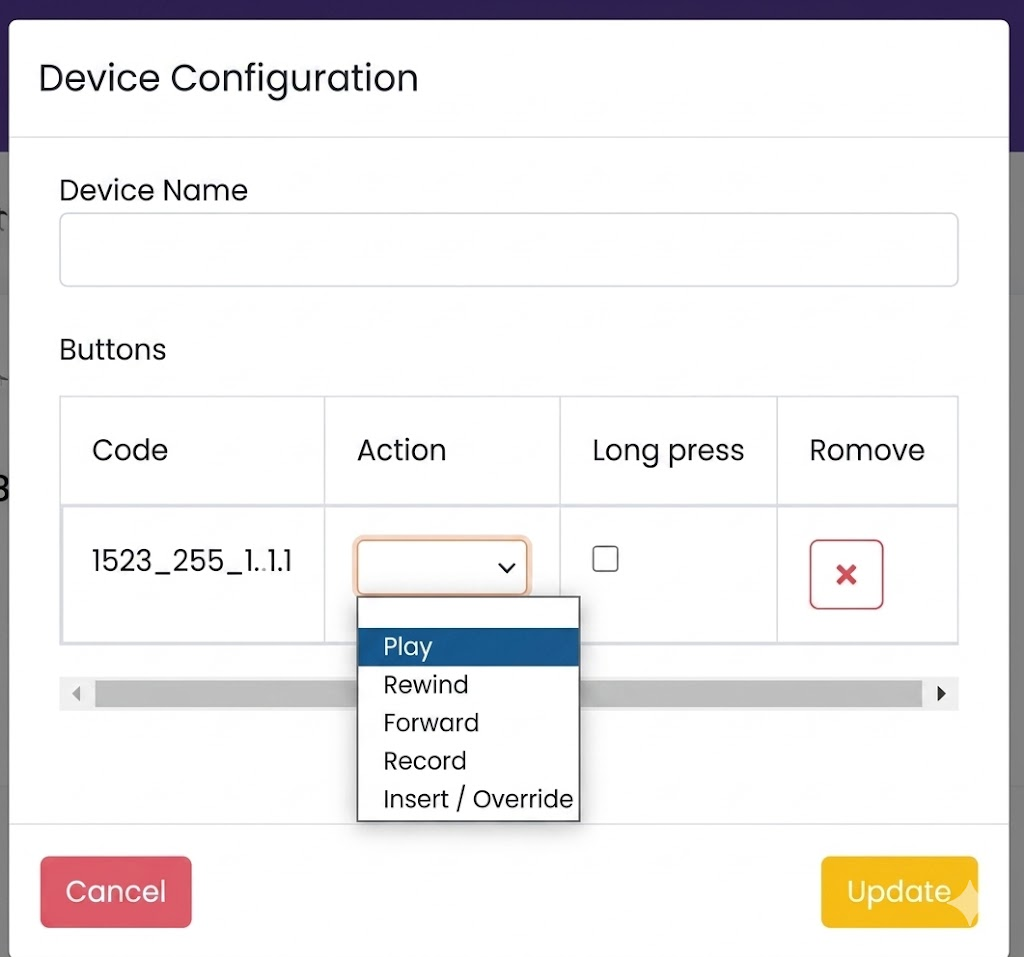
Click on “Update” once all buttons of the device are configured. (Image below)
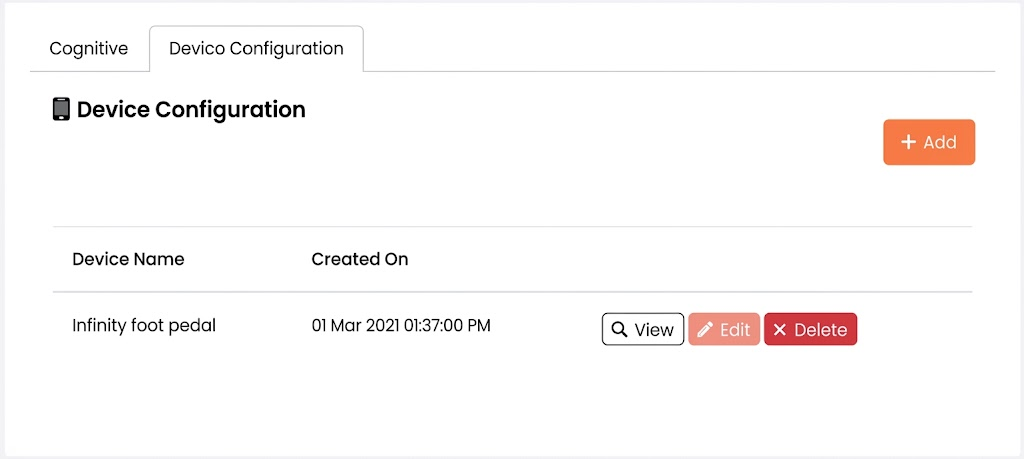
You have now added a device configuration.
Click on the “Users” button on the device added above and select the user you want to assign this pedal and that’s it!
Your device is now configured and successfully assigned to a user. (Do not forget to sign out and sign back in user to see the effect)
Please let me know if you have any questions.
Please let me know if you have any questions and we can go on Teams and screen share to install the foot pedal. Please contact support@dictalogic.com if you are experiencing problems with configurations.