What voice commands are available in Speech Anywhere?
Overview
Speech Anywhere includes a range of built-in voice commands that allow you to control formatting, punctuation, navigation, and editing entirely by voice.
Applies to
All Users
Punctuation commands
You can dictate punctuation by speaking the name of the punctuation mark. Common examples include:
Say “full stop” or “period” to insert a full stop (.). Say “comma” to insert a comma (,). Say “question mark” to insert a question mark (?). Say “exclamation mark” to insert an exclamation mark (!). Say “colon” to insert a colon (:). Say “semicolon” to insert a semicolon (;). Say “open bracket” and “close bracket” to insert parentheses. Say “open quotes” and “close quotes” to insert quotation marks. Say “hyphen” to insert a hyphen (-). Say “dash” to insert a dash (—).
Formatting and navigation commands
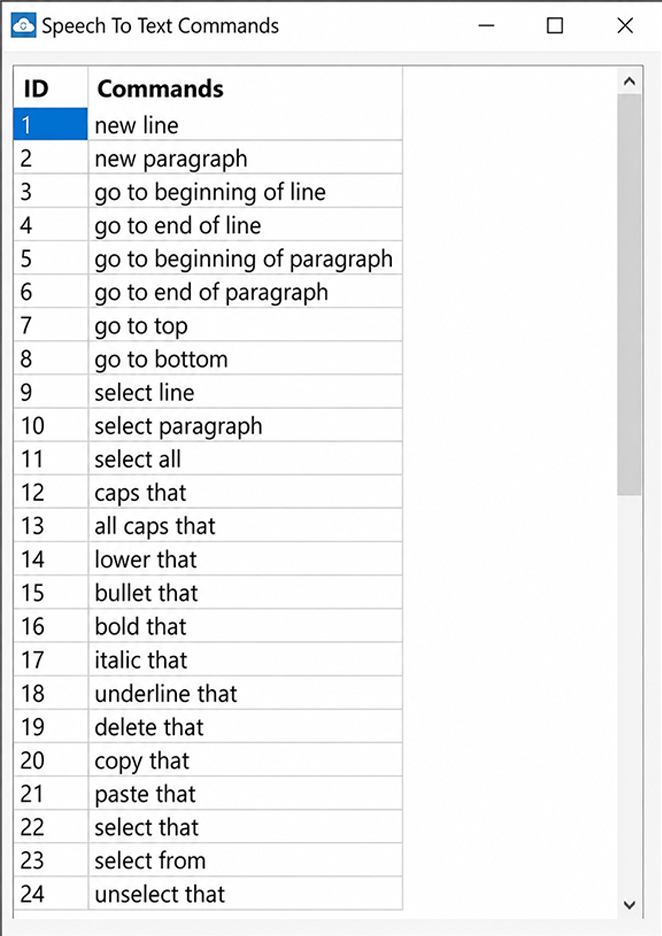
Say “new line” to move to a new line. Say “new paragraph” to start a new paragraph. Say “tab” to insert a tab. Say “cap” followed by a word to capitalise the first letter of that word. Say “caps on” and “caps off” to toggle capitalisation. Say “all caps” followed by a word to make the word fully uppercase.
Editing commands
Say “scratch that” or “delete that” to remove the last phrase dictated. Say “undo” to undo the last action. Say “select all” to select all text.
Application specific commands
Speech Anywhere includes specially designed commands for Microsoft Word and Outlook, enabling users to navigate documents, apply formatting, compose and send emails, and more without using the keyboard or mouse. The full list of application-specific commands is available within the widget’s help section or from Dictalogic support.
Custom commands
In addition to the built-in commands, you can create your own custom voice shortcuts. For example, you could create a shortcut so that saying a specific trigger phrase automatically inserts a full paragraph of pre-written text. See the article on improving accuracy and customisation for details.