How do I dictate on my Android device?
Overview
This article explains how to use the Dictalogic app on an Android device to record and submit dictations.
Applies to
All Users
Installing the app
Download the Dictalogic app from the Google Play Store. Search for “Dictalogic” and tap Install. Once installed, open the app and log in with your Dictalogic credentials or use SSO.
Log in as a non-Office 365 user.
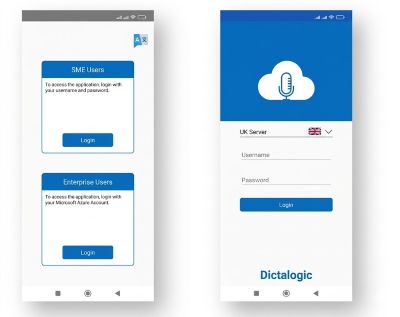
1- Launch the Dictalogic App.
2- Click on the SME user “Login” button.
3- Click the dropdown menu and choose the Data Reside Server.
4- Enter username and password and press continue.
Login as a Microsoft Office 365 user.
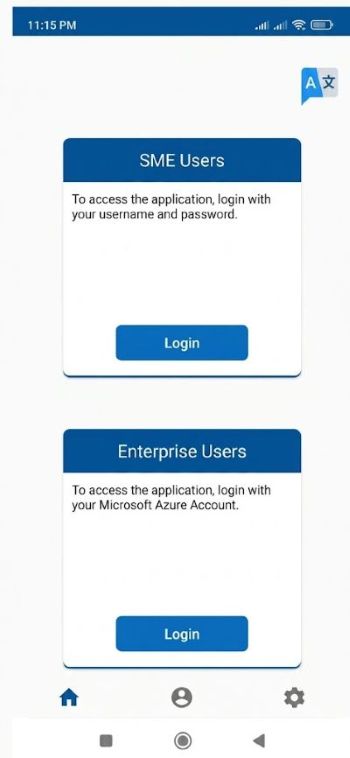
1- Launch the Dictalogic App.
2- Click on the Enterprise user “Login” button and enter Microsoft
credentials.
Recording a dictation
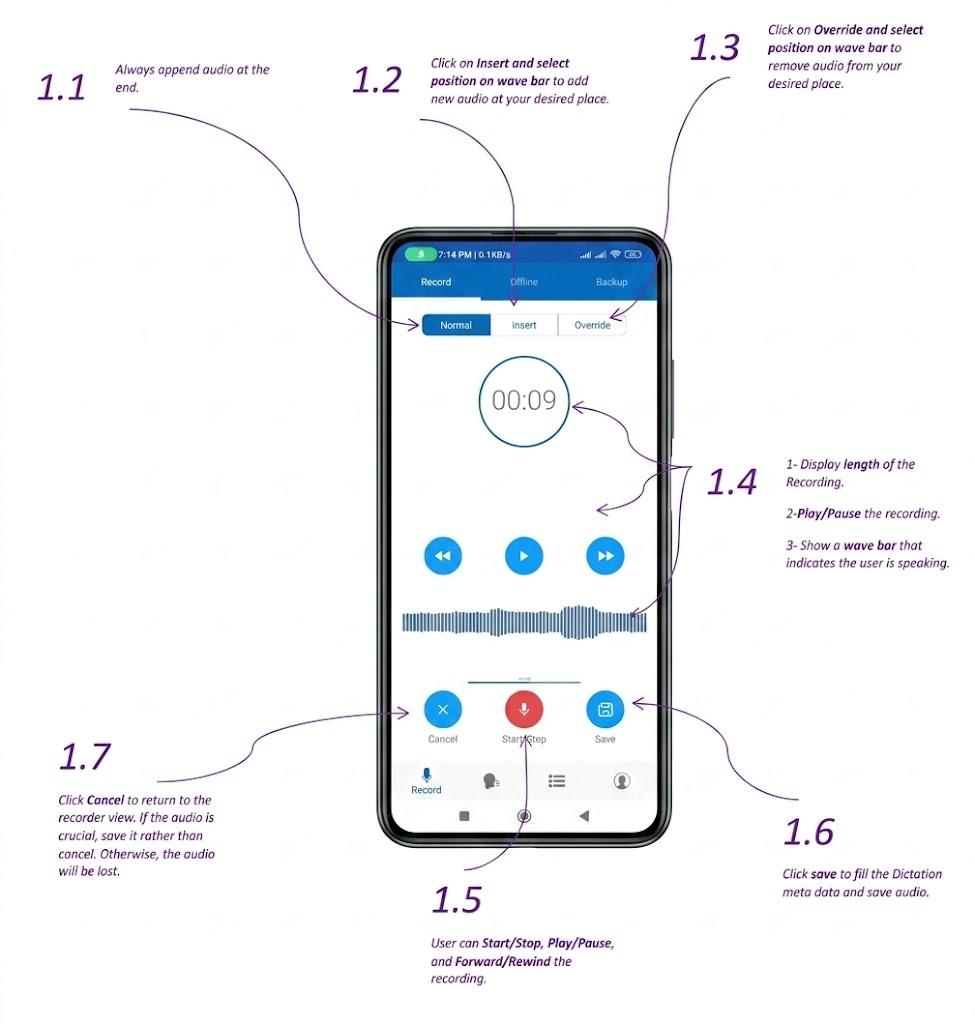
Tap the record button in the app to begin recording. Speak clearly into the device microphone or a connected Bluetooth or wired headset. Tap pause to pause and resume as needed. Tap stop when your dictation is complete.
Insert and override
The Android app supports Insert and Override recording modes, allowing you to correct sections of an existing dictation without re-recording the entire file. For step-by-step guidance, see the knowledge base article “How to Insert or Override audio on mobile (Android)?”
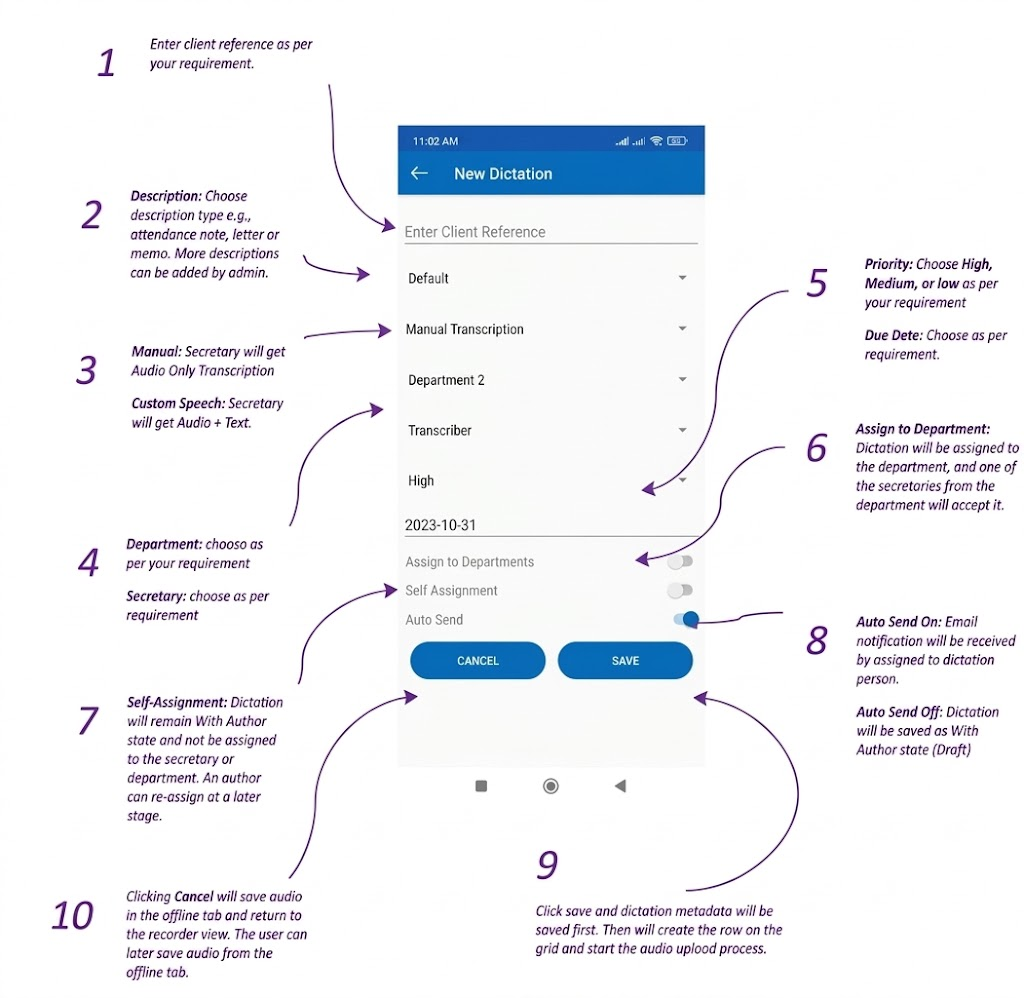
Adding dictation details
Add the relevant work type, priority, and any notes for the transcriptionist before submitting.
Submitting the dictation
Tap submit or send to upload the dictation to the Dictalogic platform. If you are offline, the dictation will be saved locally and uploaded when connectivity is restored.